
Trip.com isn't getting our prices for 3, 4 or 5 guests
Trip.com was on pricing per room. Trip.com support has to switch the account to pricing per guest (occupancy based).
Trip.comOccupancy-based pricing (OBP)Channel mappingFull sync
#What the client asked
"My Trip.com pricing isn't getting pushed for 3, 4 and 5 guests."
#What it is
Trip.com's connection with Channex was set to Pricing per room (standard): one price for the room, whatever the number of guests. To take a separate price for each number of guests, Trip.com has to be on Pricing per guest (occupancy based), the same idea as occupancy-based pricing on Booking.com.
Unlike Booking.com, this can't be changed from the extranet or from Channex. Only Trip.com support can switch it, and it takes 1–3 days.
#How we solved it
- 1
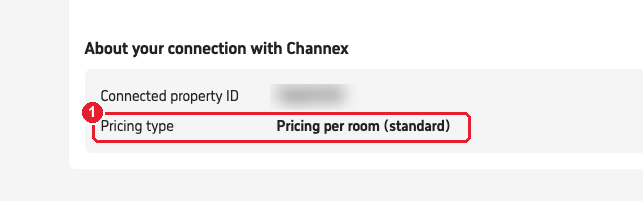
Check the pricing type on Trip.com. In Trip eBooking, open Rates & Availability → Connectivity settings. Under About your connection with Channex, Pricing type showed Pricing per room (standard).
- 2
Ask Trip.com Lodging Support to change it. Email lodgingsupport@trip.com, or message Trip.com Lodging Support on WhatsApp (+1 (203) 580-8438, the verified account) from the property's registered phone number. Give the hotel ID and ask them to change the pricing type to Pricing per guest (occupancy based).
- 3
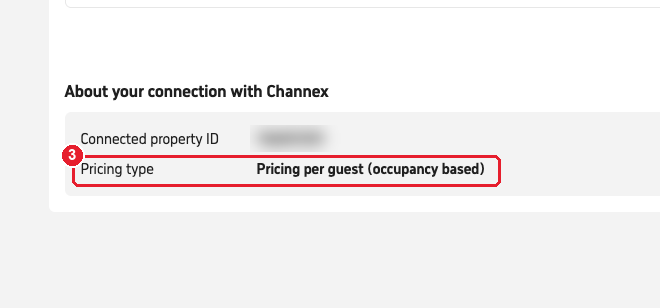
Wait for the change, then check again. It took 1–3 days. The same page then showed Pricing per guest (occupancy based).
- 4
Check the ClearHost rate plan has a price for every guest count. It needs to be a Per Person plan with rows up to 5 guests. See steps 1–2 of I want a different price for 1, 2 or 3 guests.
- 5
Check the Trip.com mapping. In Channel Manager → Channels, open the Trip.com channel and make sure every guest count of each rate is mapped to the ClearHost rate with the same guest count. Click Refresh if Trip.com's rates look out of date, then save.
- 6
Run a Full sync from Channel Manager → Inventory so the prices for every guest count go out. See Run a full sync to your channels.
#How to check it worked
- Pricing type on Trip.com's Connectivity settings shows Pricing per guest (occupancy based).
- On Trip.com's rate calendar, a few dates show a price for 3, 4 and 5 guests, matching ClearHost.