
I want 5% GST below ₹7,500, 18% above it, and no tax below ₹1,000
GST slabs: one tax set per slab, each attached to the rate plans priced in that range. Works on the booking engine and the OTAs.
#What the client asked
"I want my tax to be 5% (CGST + SGST) for room prices below ₹7,500, and 18% above ₹7,500. Below ₹1,000 there should be no tax." It had to work on their booking engine and be sent to the OTAs too.
#What it is
GST on a room depends on its price, so one property needs several tax rates at once. In ClearHost that's one tax set per slab:
| Room price per night | Tax set | Taxes inside it |
|---|---|---|
| Below ₹1,000 | none | none |
| ₹1,000 to ₹7,500 | GST 5% rate | GST 5% (or CGST 2.5% + SGST 2.5%) |
| Above ₹7,500 | GST 18% rate | GST 18% (or CGST 9% + SGST 9%) |
At first it looked as if a property could only use one tax set, because only one can be Active. That's not what Active means: it only makes that set the default, the one filled in on new rate plans and sent to the channel manager as the property's default. Any number of tax sets can be used at the same time, because each rate plan carries its own tax set.
#How we solved it
- 1
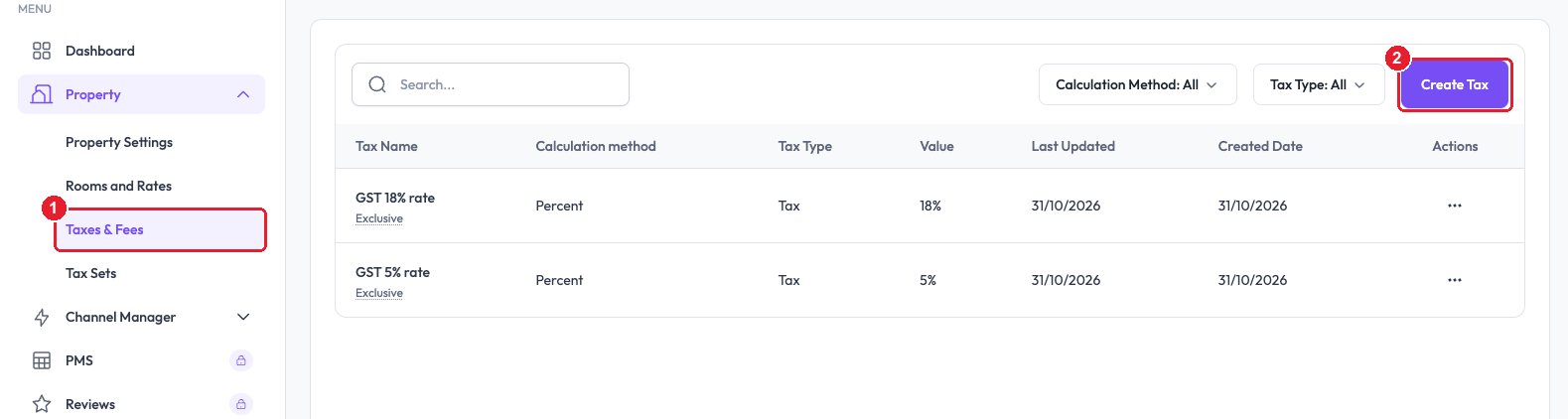
Open "Property → Taxes & Fees".
- 2
Click "Create Tax".
- 3
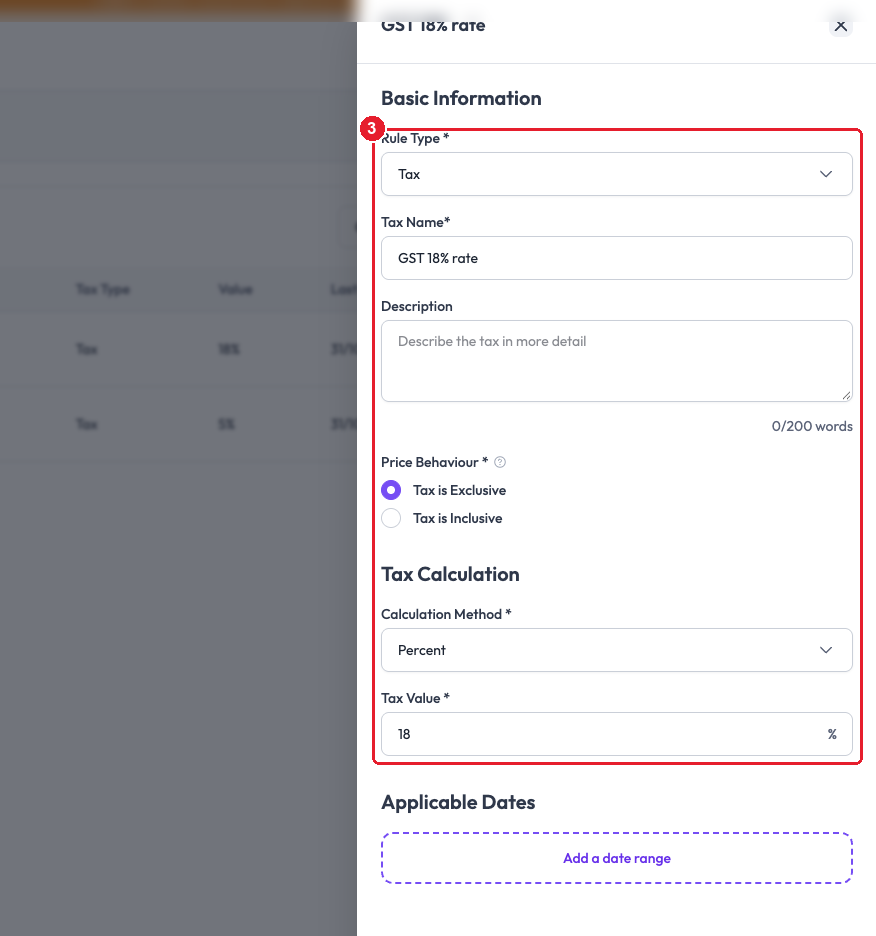
Create the 18% tax. Rule Type: Tax, Tax Name: GST 18% rate, Price Behaviour: Tax is Exclusive, Calculation Method: Percent, Tax Value: 18. Leave Applicable Dates empty so it always applies, then click Create Rule.
- 4
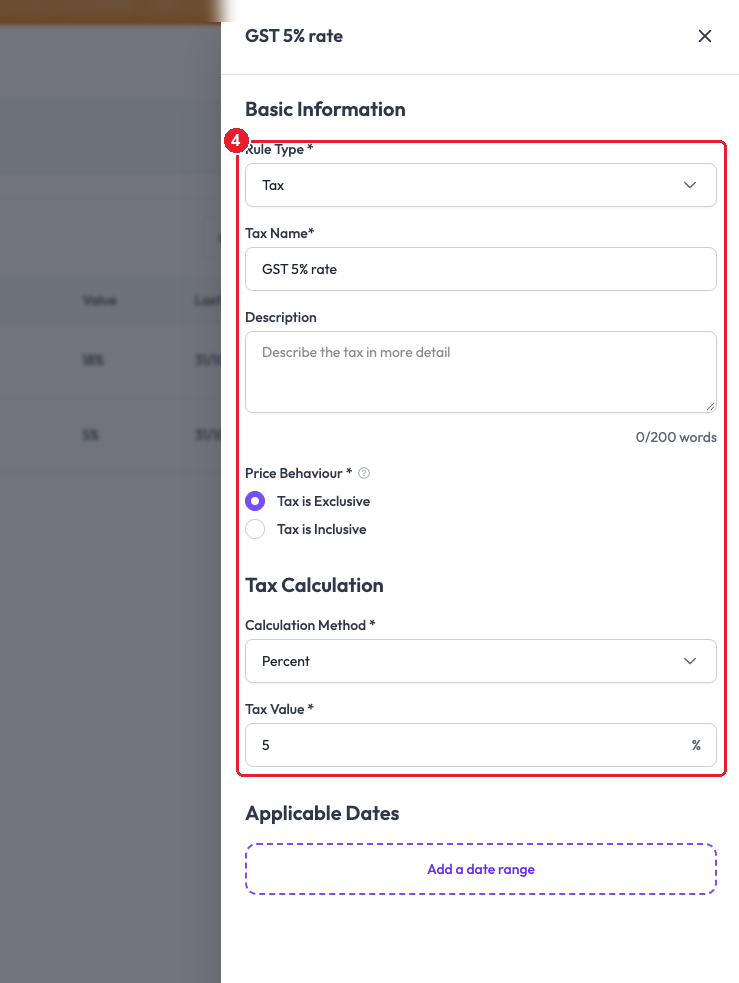
Create the 5% tax the same way, with Tax Name GST 5% rate and Tax Value 5.
- 5
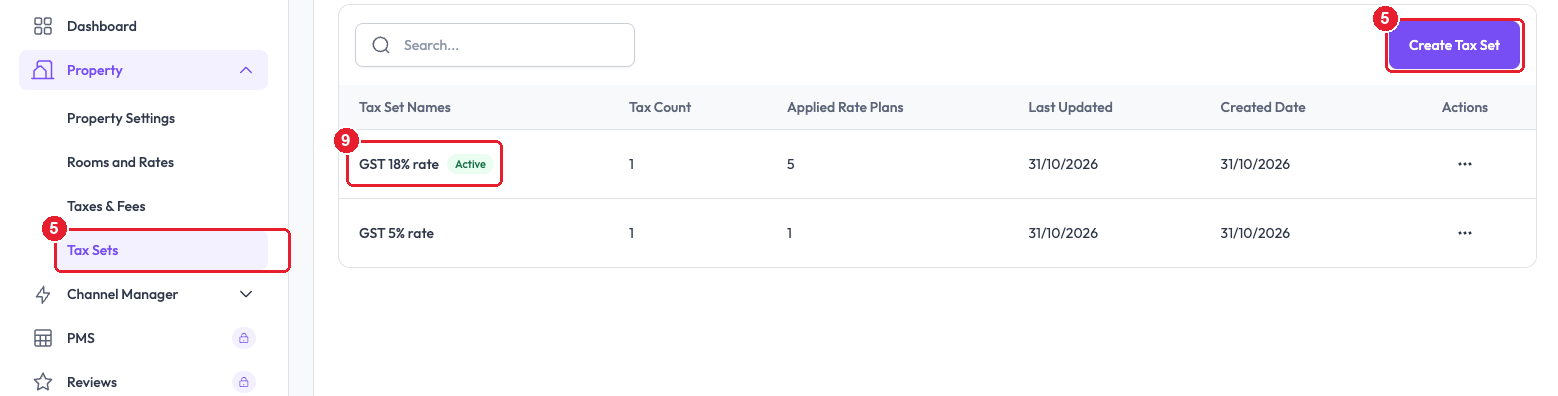
Open "Property → Tax Sets" and click "Create Tax Set" for each slab. Make a set called GST 18% rate with the 18% tax in it, and one called GST 5% rate with the 5% tax. See Group your taxes together into a tax set.
- 6
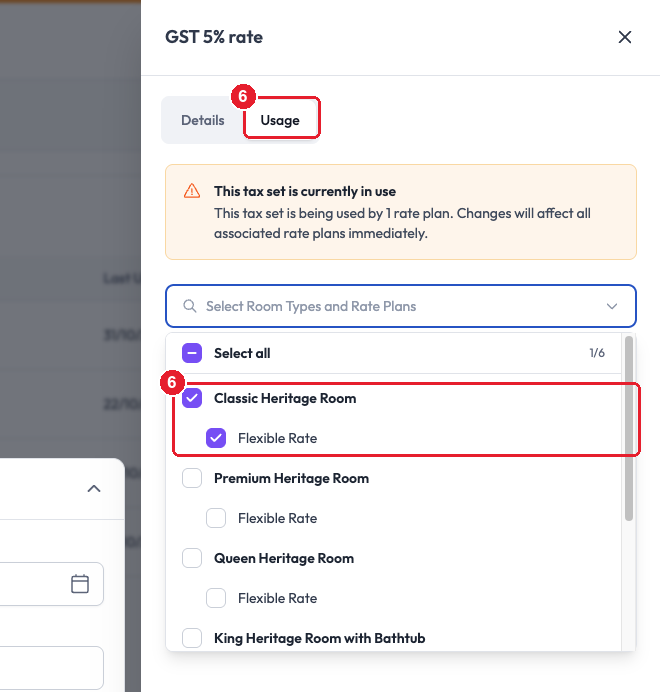
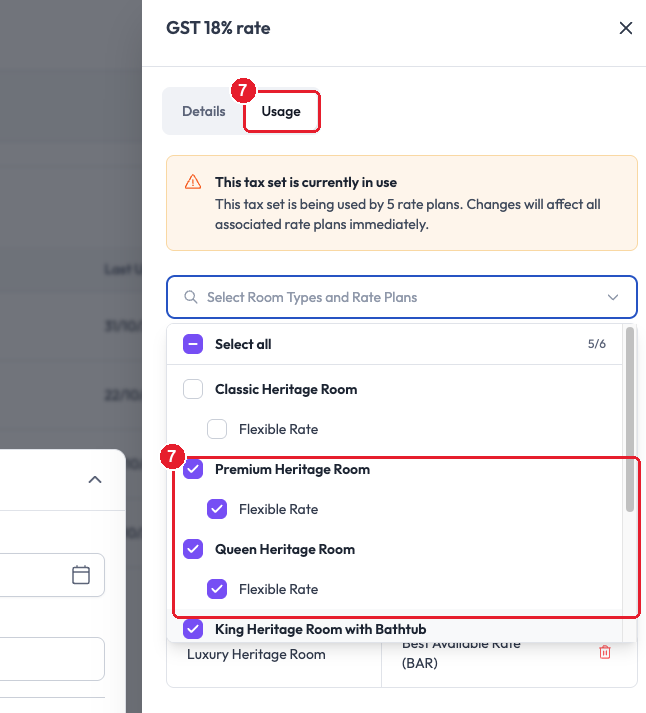
Attach the 5% set to every rate plan priced from ₹1,000 to ₹7,500. On the set's row open the three-dot menu → Edit, switch to the Usage tab, tick those room types and rate plans, then Save Changes → Apply Changes.
- 7
Attach the 18% set to every rate plan priced above ₹7,500 in the same way.
- 8
Leave rate plans priced below ₹1,000 out of both sets. A rate plan with no tax set is sold with no tax. A rate plan can only carry one set, so ticking it in one set takes it out of the other.
- 9
Make the most common slab the Active set (three-dot menu → Set as Active). New rate plans get it automatically, and it's what the channel manager receives as the property's default tax set.
#How to check it worked
- On Property → Tax Sets, Applied Rate Plans adds up to every taxed rate plan (here 5 on the 18% set and 1 on the 5% set). Don't go by the Active badge: it doesn't mean anything is charged.
- On the booking engine, a room under ₹7,500 shows 5% tax and a room over ₹7,500 shows 18%.
- To check one rate plan, open it on Property → Rooms and Rates and look at its Tax Sets field.
#Good to know
- The tax follows the rate plan, not the price. ClearHost doesn't move a rate plan between slabs when its price changes. If a rate plan crosses ₹7,500 (a season, a weekend, a price increase), move it to the other tax set yourself.
- CGST and SGST shown separately: put two taxes in the set instead of one, e.g. CGST 2.5% and SGST 2.5% for the 5% slab. ClearHost works out every percentage on the room rate, so 2.5% + 2.5% gives exactly 5%.
- More on making a tax set apply to your room rates.