
I want one of my OTAs to be 10% higher than the others
Channel rate modifier (Rate Logic in Channel Settings): add a % or ₹ amount to one OTA channel only. The other OTAs and the booking engine keep the ClearHost rate.
Booking.comExpediaAgodaMMT / GoibiboTrip.comFull syncRate plans
#What the client asked
"I have 4 OTAs connected. I want one of them to be 10% higher than the others" (or higher by a fixed amount, e.g. ₹500). Usually it's an OTA with a higher commission, so the client wants to cover it there without raising prices everywhere.
#What it is
Every OTA channel in ClearHost has a rate modifier (Rate Logic, under Channel Settings → Derived Rates Settings). When ClearHost sends rates to that OTA, it changes them by the modifier first. The rate in ClearHost and on the booking engine stays as it is, so you don't need a separate rate plan for that OTA.
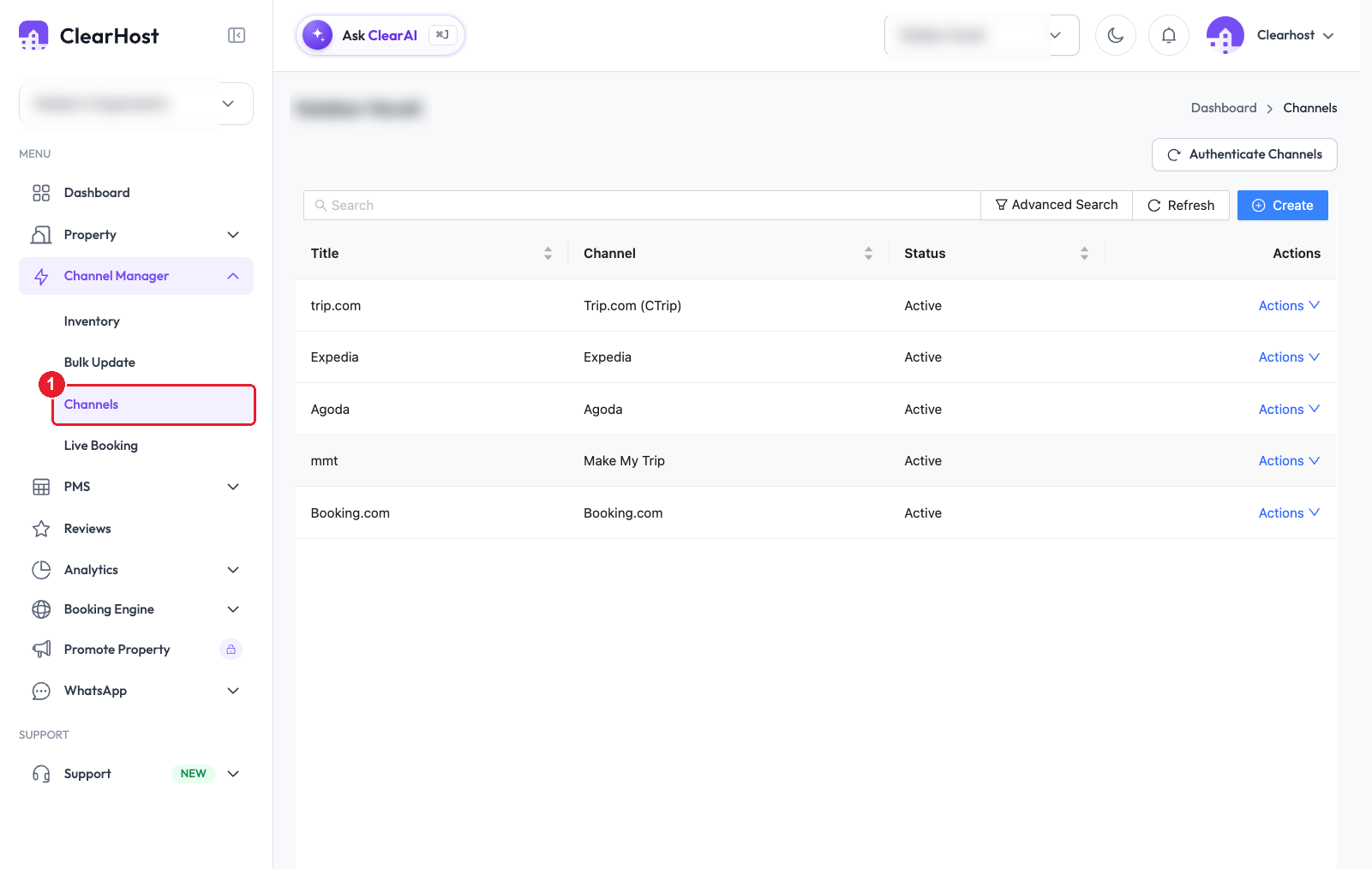
It's set per channel, so you can add it to just one OTA out of four. The others keep the ClearHost rate, unless you give them their own modifier too. Here only Booking.com is higher:
There are four types: Increase By Amount, Decrease By Amount, Increase By Percent and Decrease By Percent.
#How we solved it
- 1
- 2
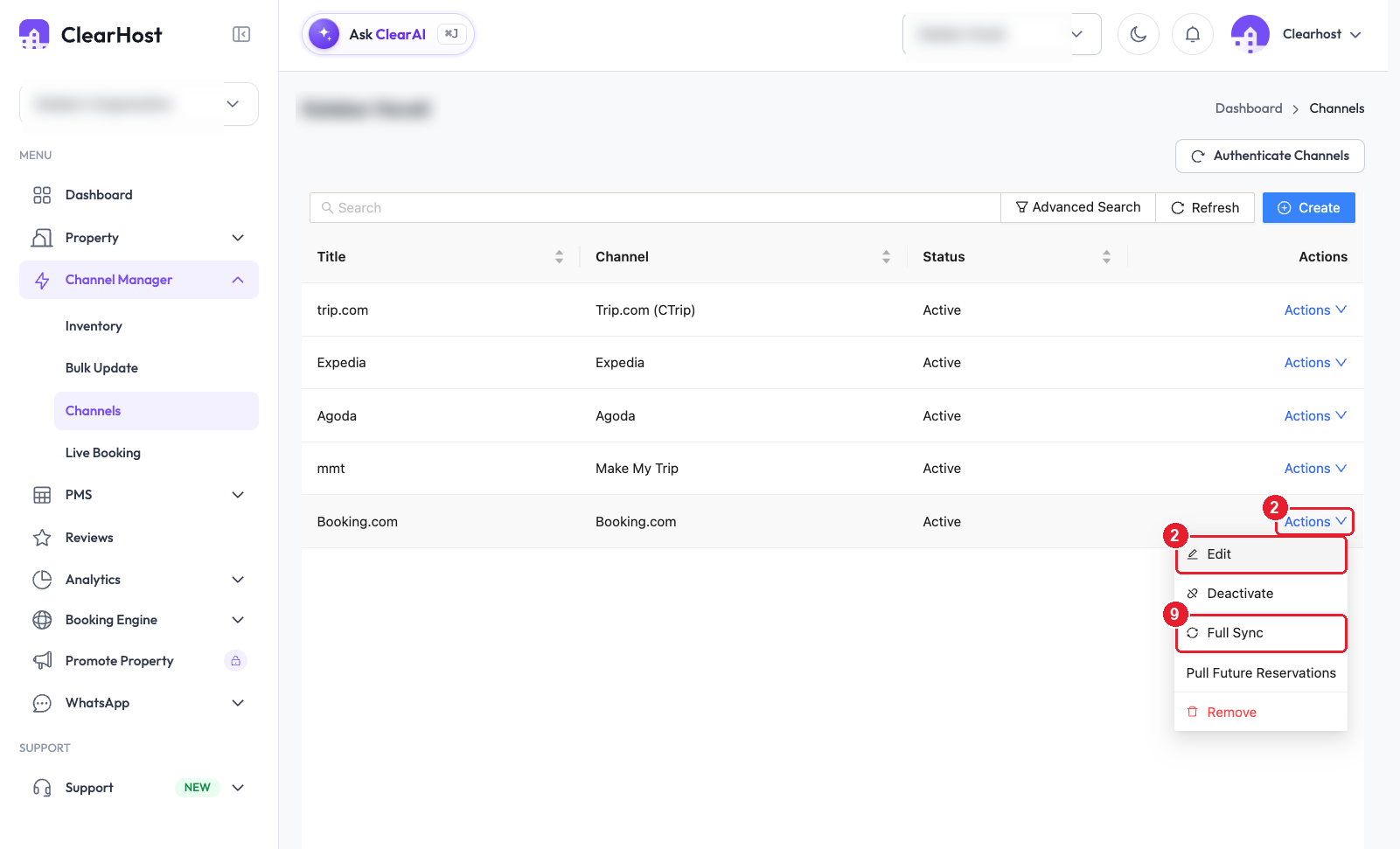
On the row of the OTA that should be higher, click "Actions", then "Edit".
- 3
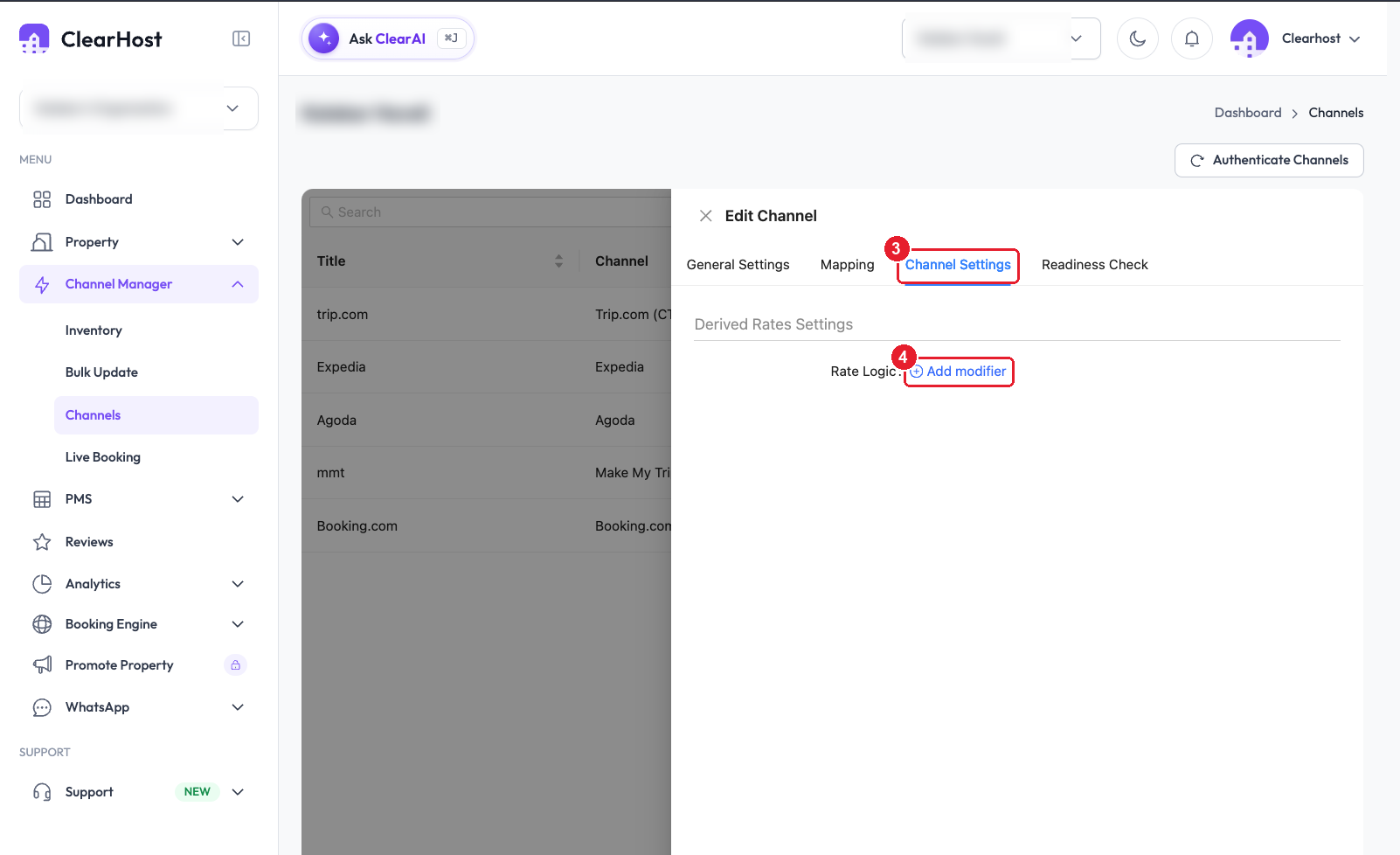
Open the "Channel Settings" tab.
- 4
Under "Derived Rates Settings", next to "Rate Logic", click "Add modifier".
- 5
In "Choose Type", select "Increase By Percent". For a fixed amount, choose Increase By Amount instead.
- 6
In "Enter Value", type the number:
10for 10%, or500for ₹500.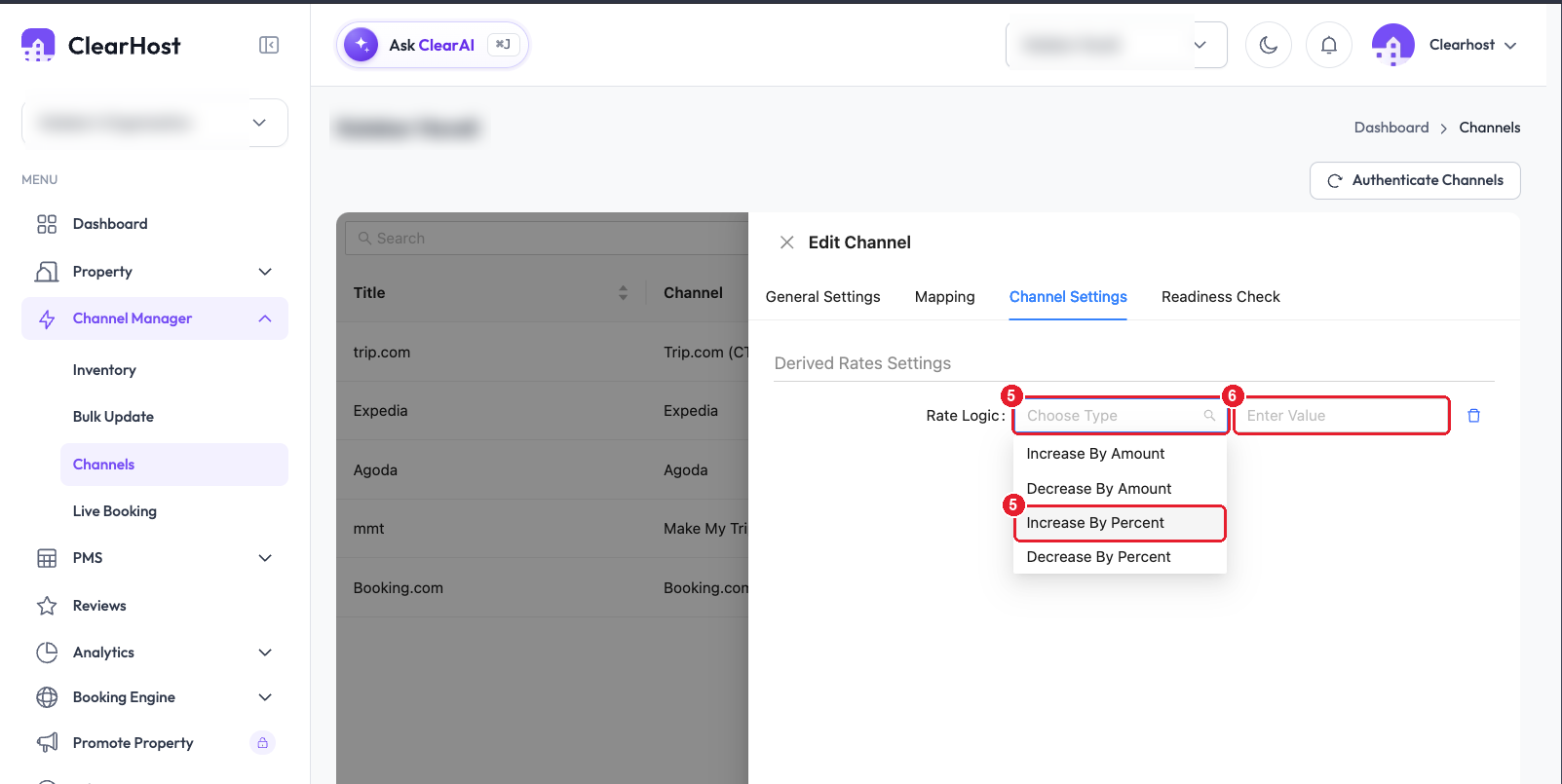
- 7
Click "OK" to save the channel.
- 8
Only if another OTA should also be higher, repeat steps 2 to 7 for it. Each one can have its own value; an OTA you don't change keeps the ClearHost rate.
- 9
Back on the list, click "Actions" → "Full Sync" on each OTA you changed (only those). This resends all rates with the modifier applied. Without it, only dates you change from now on get the new price.
#How to check it worked
- Open that OTA's extranet (e.g. Booking.com's rates calendar) for a few dates: the price should be the ClearHost rate plus the modifier (₹5,000 → ₹5,500 with +10%).
- The other OTAs and the booking engine still show the ClearHost rate (₹5,000).
#Good to know
- The modifier applies to every rate plan and date sent to that OTA. For a different markup on one rate plan only, use a separate rate plan instead.
- Don't add the markup twice. If the client also raised prices in the OTA's extranet (or the OTA has its own markup or promotion), the guest sees both.
- GST slabs: with the modifier, an OTA price can cross ₹7,500 while the rate plan still carries the 5% tax set. Check rates near the slab; see I want 5% GST below ₹7,500, 18% above it.
- To remove it, click the bin icon next to the modifier, save, and do a Full Sync again.