
I want a different price for 1, 2 or 3 guests
Occupancy-based pricing (OBP): price per person instead of per room, so the price changes with the number of guests.
Booking.comOccupancy-based pricing (OBP)Channel mappingRate plans
#What the client asked
The property wants the room price to depend on how many guests stay: for example ₹3,000 for one guest, ₹3,500 for two and ₹4,200 for three. Booking.com was showing the same price whatever the number of guests.
#What it is
This is occupancy-based pricing (OBP): the price is set per number of guests instead of one price for the room. Booking.com supports it, and once a property is on OBP, every guest count needs its own price.
A price travels through three places, and all three have to agree. With OBP, each guest count travels separately:
What decides OBP in each place:
| Where | What decides OBP |
|---|---|
| ClearHost | The rate plan's Price Settings: Per Room sends one price; Per Person sends a price for each guest count. This is chosen when the rate plan is created and can't be changed afterwards. |
| Channex | The channel mapping. For an OTA on OBP, each guest count (occupancy) of a room type is mapped separately. One of them is the primary rate, which is the one that sends restrictions such as min stay and stop sell. |
| OTA (Booking.com) | The property's pricing type: Standard, Occupancy-based (OBP) or Rate-level occupancy (RLO). Standard and OBP can be switched from the channel's settings in Channex; RLO can only be set on the Booking.com account. |
#How we solved it
- 1
Create a Per Person rate plan in ClearHost. On Property → Rooms and Rates, add a rate plan with Per Person pricing and a price for each guest count. See Set occupancy-based pricing. An existing Per Room plan can't be switched; create a new one instead.
- 2
Check the room type allows enough guests. The rate plan gets one price row per guest count, up to the room type's Adult Spaces. If Booking.com sells the room for up to 3 guests and the plan only shows rows for 1–2, raise it on the room type (three-dot menu → Edit Details; see Edit a room type).
- 3
Open the Booking.com channel in Channex. Go to Channel Manager → Channels and open the Booking.com channel (Edit Channel). On the General Settings tab, Pricing Type shows what Booking.com currently expects.
- 4
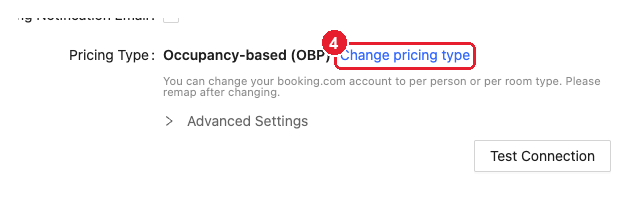
Click "Change pricing type" next to Pricing Type.
- 5
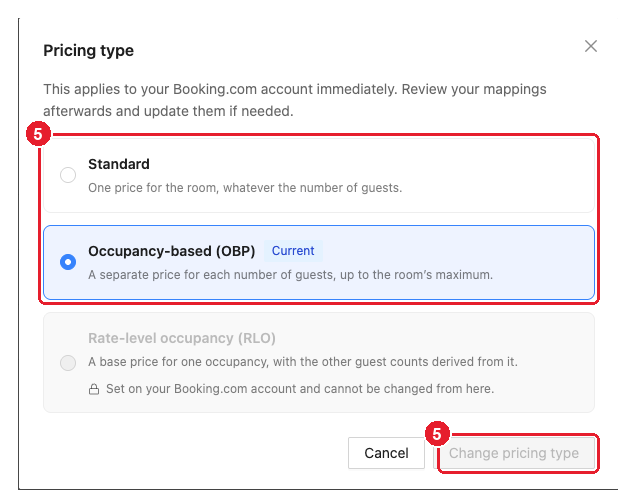
Pick "Occupancy-based (OBP)" (a price for each number of guests), then click "Change pricing type". This applies to the Booking.com account immediately. Rate-level occupancy (RLO) is greyed out because it can only be set on Booking.com.
- 6
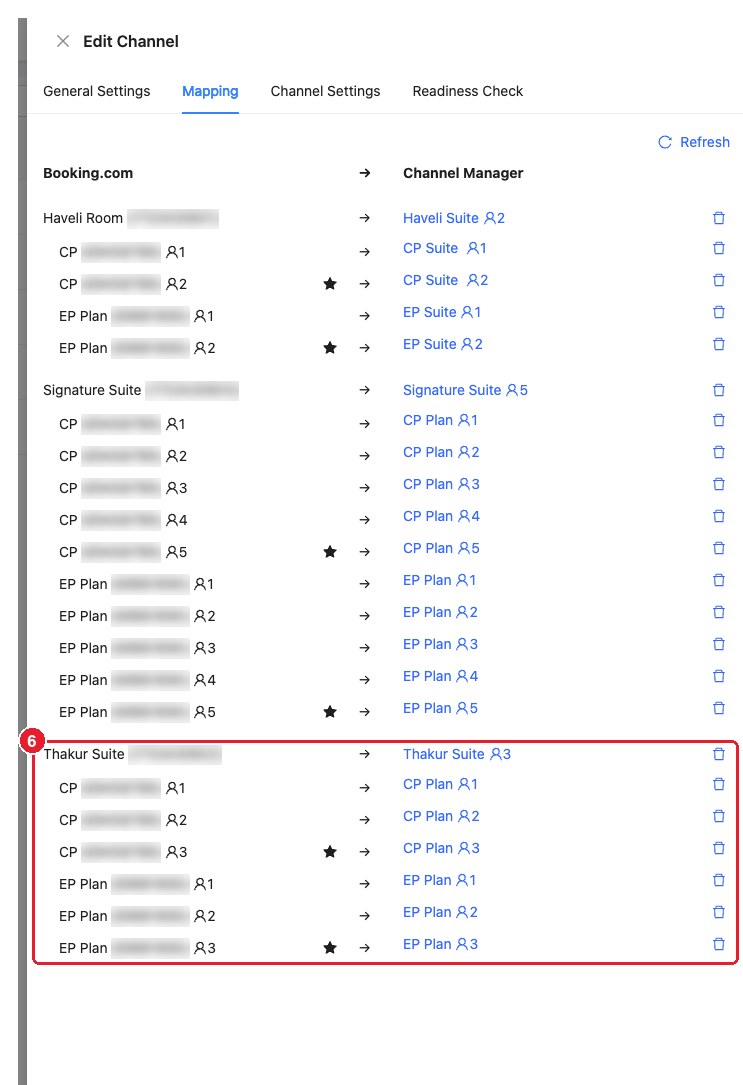
Map every guest count on the "Mapping" tab. On OBP, each Booking.com rate appears once per guest count (the person icon and number, e.g. CP 👤1, 👤2, 👤3) and must point to the ClearHost rate plan for the same guest count. Click Refresh if Booking.com's rooms or rates look out of date, then save the channel.
- 7
Push the rates. Use Full sync on Channel Manager → Inventory so the prices go out straight away. See Run a full sync to your channels.
#How to check it worked
- The channel in Channel Manager → Channels shows no new errors after the sync.
- On Booking.com's rate calendar, a few dates show a price for every guest count (e.g. 1, 2 and 3 adults), matching ClearHost.
- A min stay or stop sell set in ClearHost shows on Booking.com for all guest counts.
#Common problems
#Booking.com rejects the rates: pricing type mismatch
The channel shows an error about the pricing type, e.g. prices sent per guest count while the property is on Standard, or the other way round. Check the rate plan (three-dot menu → Edit Rate Plan; the greyed-out Per Room / Per Person toggle shows how it is priced) against the channel's Pricing Type:
| ClearHost rate plan | Booking.com pricing type | Fix |
|---|---|---|
| Per Person | Standard | Change Booking.com to Occupancy-based (OBP) (steps 3–7 above). |
| Per Room | OBP | If the property wants one price for the room, change Booking.com to Standard (steps 3–7, picking Standard). Otherwise keep OBP and follow steps 1–7. |
| Either | RLO | RLO is set on the property's Booking.com account and can't be changed from Channex. Ask the property to change it on Booking.com, then follow steps 3–7. |
💡 Booking.com "single occupancy" errors: if a Booking.com rate uses rate-level occupancy with a fixed occupancy other than 1, Booking.com rejects single-use prices (error
INVALID_USE_OF_SINGLE_OCCUPANCY). Either stop sending a 1-guest price for that rate or ask the property to change the rate's occupancy setting on Booking.com.
#Some guest counts have no price
For example, the 2-adult rate shows on Booking.com but 1 or 3 adults are missing or closed.
- Mapping: on the channel's Mapping tab, every guest-count row (👤1, 👤2, 👤3…) needs a ClearHost rate with the same guest count, not just the starred one (step 6).
- Missing rows in the rate plan: raise Adult Spaces on the room type (step 2).
- Empty rows: on Custom Pricing, each guest count needs its own price; an empty row means no price. On Adjust from primary occupancy or Auto Calculate, check the increase and decrease figures cover every row.
Then run a Full sync.
#Min stay or stop sell only works for one guest count
On Booking.com OBP, only one guest count (the primary rate) sends min stay, stop sell and other restrictions, because Booking.com keeps them per rate plan, not per guest count. On the Mapping tab, the primary guest count of each rate has a ★ (usually the room's maximum, e.g. 👤3). Hover over another row to move the ★ there, set the restriction in Channel Manager → Inventory, and save.
#"Unmapped booking" errors
Older derived rates on Booking.com can show up as mappable in Channex. If they are left unmapped, bookings on them come in as unmapped. Either map them too, or ask the property to delete those old derived rates on Booking.com and create them again (new derived rates don't need mapping). Check the derived rates' min stay and other settings on Booking.com afterwards, since they don't come from ClearHost.
#Sources
- Channex: Booking.com mapping guide and help article (OBP mapping, primary rate, derived rates)
- Booking.com: Implementing pricing types and Rates & Availability FAQ (OBP needs a price per occupancy; single-occupancy error)
- Booking Experts: Booking.com error codes (pricing-type mismatch errors)